
Enforcing DLP with Edge for Business, Without Giving Up Your Favourite Browser
17th October 2026, Nipuna Weerasinghe
Executive summary
In my previous post, Zero Trust Aligned DLP Architecture for the AI Era: Where Inline DLP Meets Global Secure Access, I argued that browser based inline DLP only protects users who are actually working in Edge for Business, and that Global Secure Access (GSA) extends that coverage to the network layer. The question I got back most often from the community, colleagues and clients was a simple one: what happens when the user just opens Chrome? This post is my answer for organisations that aren’t ready to roll out GSA yet.
The short version: don’t chase browsers. Make Edge for Business the required door for the apps and AI services that handle sensitive data, and let everything else carry on as normal. There are two distinct ways to do that, and most of the design mistakes I see come from blending them together.
- Managed business apps (Entra SSO apps such as SharePoint Online or your HR platform) are enforced through Conditional Access App Control and Edge for Business in-browser protection. This works on corporate and personal devices, inside the Edge work profile, with no device enrolment.
- Unmanaged AI apps (ChatGPT, Gemini, DeepSeek and others) are enforced through Purview DLP for unmanaged apps. This applies across all Edge profiles, but only on Intune-managed Windows 10/11 devices.
- For Purview DLP on managed apps, Edge enforcement must be set to Allow access only from Edge for All devices. Anything softer leaves the gap open.
- Pick one policy engine per user and app. Layering a Defender for Cloud Apps session policy and a Purview managed app DLP policy on the same users can stop the Purview protection from applying.
- This is a browser control. Native clients, command line tools and non browser traffic remain Endpoint DLP or network-layer (GSA) territory.
The question I kept getting: “What about Chrome?”
Inline DLP is compelling because it acts on the interaction itself. A user types or pastes something sensitive into a web app and the control evaluates it right there, rather than waiting for a file to land somewhere. But that only happens inside Edge for Business. So the challenge I kept hearing was fair: if a user can open Chrome or Firefox, how is the control enforced without GSA?
The traditional answer is to block other browsers on the endpoint with WDAC or AppLocker. I’ve watched that approach struggle on more than one engagement. It only covers corporate Windows devices, it breaks legitimate workflows, it generates a steady stream of exceptions, and it does nothing at all for BYOD.
The approach in this post enforces at the app access layer instead. Users can keep whatever browser they like for general browsing. The moment they try to reach a protected app, Conditional Access and Defender for Cloud Apps route them into Edge for Business, where Purview inline DLP applies. For consumer AI apps on managed devices, Purview’s own automation does the equivalent job.
Two patterns that should not be mixed
Before touching a single policy, decide which pattern each scenario belongs to. They differ in device scope, licensing and activation path, and treating them as one design is where I see architecture decisions go wrong.
| Pattern | Managed apps | Unmanaged cloud/AI apps |
| Typical example | Block copy and download from a confidential SharePoint site on a personal laptop. | Stop a user pasting or type customer data into ChatGPT on a corporate laptop. |
| Primary purpose | Protect sensitive interactions with Microsoft Entra-connected business apps. | Prevent sensitive text or files being shared to supported unmanaged cloud and AI apps. |
| Device scope | Windows 10/11 and macOS; managed and unmanaged devices. | Windows 10/11 desktop devices managed by Microsoft Intune. |
| Edge profile scope | Edge for Business work profile only. | All Edge profiles: work, personal and InPrivate. |
| Activation path | Conditional Access App Control, imported groups, Conditional Access custom session control, Edge in-browser protection, then Purview DLP. | A Purview policy triggers automatically created Edge configuration policies, Intune policies and security groups. |
| Licensing | Microsoft 365 E5 or equivalent. | Pay-as-you-go or applicable per-user licensing; validate for your tenant. |
| B2B guests | Not covered by Purview browser data security policies. | Not covered. |
Scenario 1: managed business apps, including BYOD
How it works
“Managed apps” here means business applications set up for Microsoft Entra single sign on. Microsoft 365 services such as SharePoint Online, OneDrive, Exchange Online and Teams are already in that category. Third party SaaS joins it once you configure it for Entra SSO.
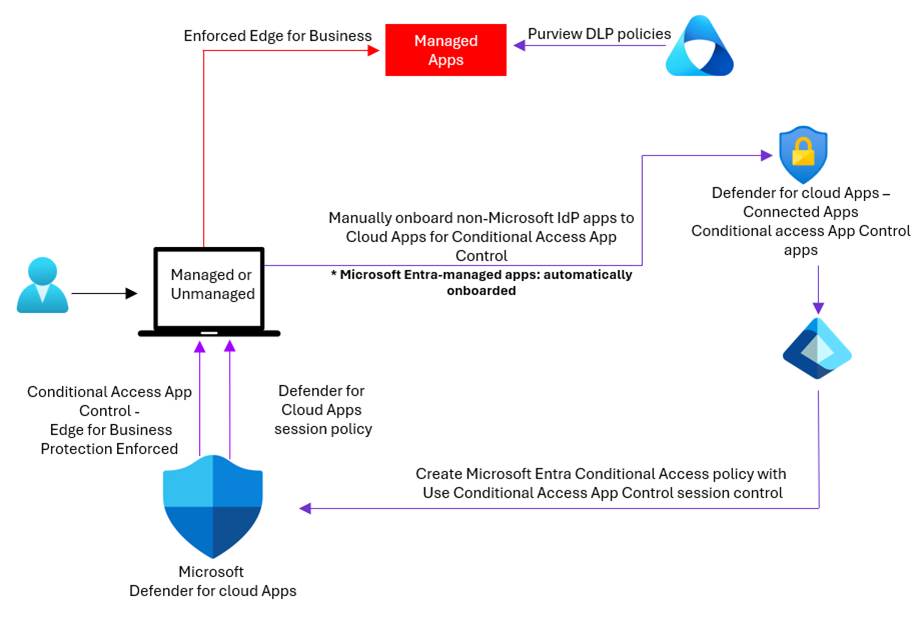
Figure 1. End-to-end flow for managed-app protection in Edge for Business.
The flow chains four controls. The app is onboarded to Conditional Access App Control, a Conditional Access policy routes browser sessions to Defender for Cloud Apps, a session control decides what is allowed, and Edge for Business enforcement refuses any other browser. Once the session is in Edge, protection runs inside the browser itself. There’s no .mcas.ms reverse proxy URL and no added latency, and developer tools are disabled for the protected session. Users can confirm they’re protected by selecting the lock icon in the address bar and looking for the briefcase symbol.
What BYOD looks like in practice
On a personal device, the user doesn’t enrol or join the device. They sign in to an Edge for Business work profile with their work account, and protection applies inside that profile. When Edge prompts them to create the work profile, they don’t need to select Allow my organization to manage my device, and Purview device onboarding isn’t required.
One distinction worth being precise about: Intune App Protection (MAM) for Edge is a separate design that can enrol the Edge work profile without enrolling the device. You don’t need it for the architecture in this post.
Build steps
Step 1 – Onboard the apps to Conditional Access App Control
Entra-managed apps, including Microsoft 365, are onboarded automatically the first time a session is routed through Conditional Access App Control. For third party SaaS, configure Entra SSO as an enterprise application; that’s also what allows Purview managed app DLP to target it. Apps that authenticate through a non Microsoft IdP must be onboarded manually in Defender for Cloud Apps, and be aware that apps using Okta authentication fall back to the reverse proxy rather than in-browser protection.
For mor information refer this Microsoft article.
Step 2 – Import user groups into Defender for Cloud Apps
This one is easy to miss. To target groups in Conditional Access and in Purview managed-app policies, import them first: in the Defender portal go to System > Settings > Cloud Apps > User groups > Import.
Step 3 – Create the Conditional Access policy
- Users: a pilot group first, then expand.
- Target resources: the apps you want to protect (see the scoping advice for Microsoft 365 later in this post). E.g. > Select Resources > Office 365
- Conditions > Client apps: Browser.
- Session > Use Conditional Access App Control: Use custom policy.
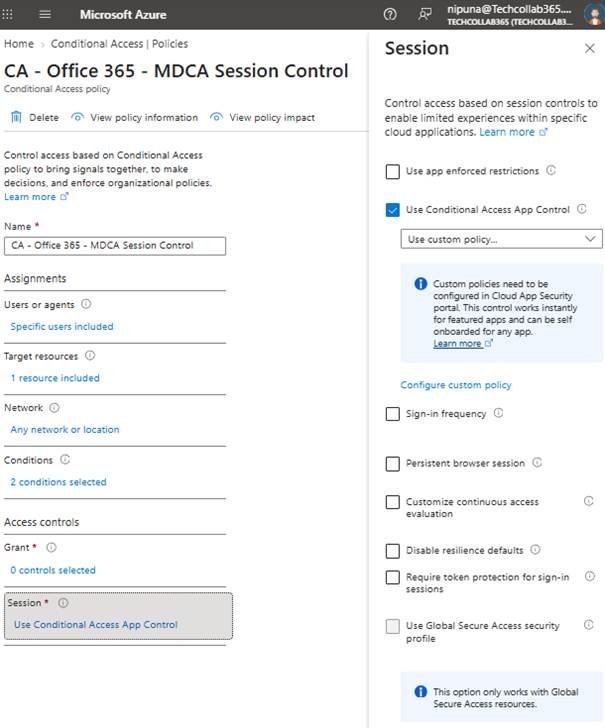
Figure 2. Conditional Access policy using the Conditional Access App Control custom session control.
The Use custom policy choice matters. The built-in Monitor only and Block downloads options are defined in the Entra portal and are always served by the reverse proxy, so you lose the in browser experience. Purview policies are served by in browser protection.
Step 4 – Enforce Edge for Business
This is the step that actually closes the Chrome and Firefox gap. In the Defender portal go to System > Settings > Cloud apps > Conditional Access App Control > Edge for Business protection and set:
- Edge for Business browser protection: On.
- Enforce usage of Edge for Business: Allow access only from Edge.
- Enforce for which devices?: All devices.
- Optionally, customise the notification that non-Edge users see so it points to your internal guidance.
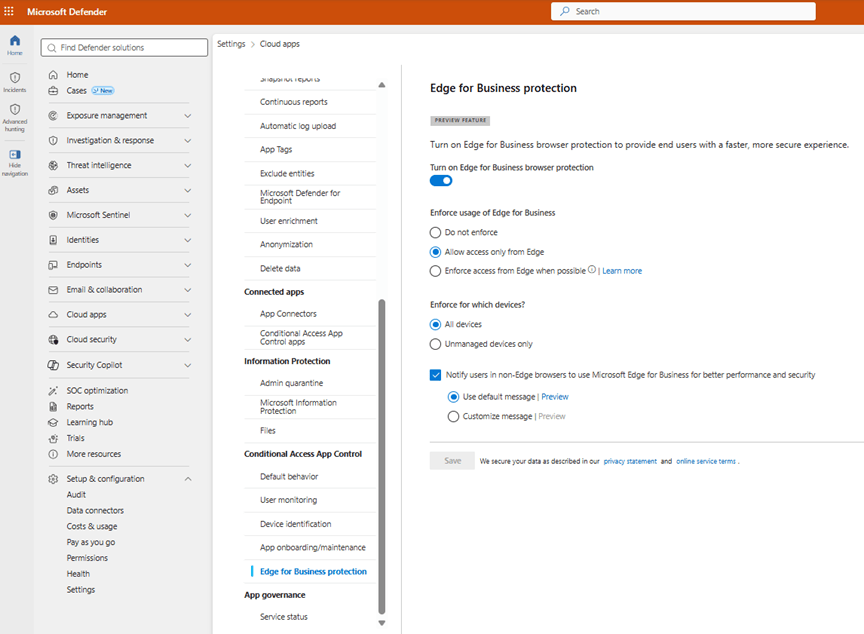
Figure 3. Edge for Business protection settings in the Defender portal.
The alternative setting, Enforce access from Edge when possible, lets users fall back to another browser when their OS or policy isn’t compatible with in-browser protection, Android being the obvious example. It’s useful during a staged rollout, but it reopens the gap, and Purview managed-app DLP requires Allow access only from Edge with All devices.
With this in place, a user who opens a protected app in Chrome is told to switch to Edge for Business rather than being given a session. One small annoyance to warn users about: the switch can lose a deep link, so the app may open on its home page instead of the exact page they clicked.
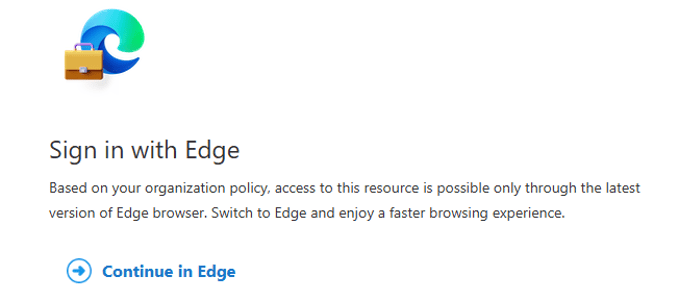
Figure 4. Enforce Edge for Business.
Step 5 – Apply the session control
Finally, create either a Defender for Cloud Apps session policy or a Purview DLP policy for managed cloud apps. How to choose is covered in the next section, because this is where I see the most avoidable mistakes.
What the browser can enforce
Support varies by device type and app type, so design your policies around this matrix rather than assuming every action is available everywhere.
| Activity | Managed app | Unmanaged app | Device scope |
| Upload text | Not listed | Allow or block | Managed devices |
| Upload file | Allow or block | Allow or block | Managed and unmanaged devices |
| Download file | Allow or block | Not listed | Managed and unmanaged devices |
| Cut/copy data | Allow or block | Not listed | Managed and unmanaged devices |
| Paste data | Allow or block | Not listed | Managed and unmanaged devices |
| Print data | Allow or block | Not listed | Managed and unmanaged devices |
| Protected clipboard | Preview | Not listed | Managed and unmanaged devices |
| Screen capture | Preview | Not listed | Managed and unmanaged devices |
Cut/copy, paste and print require a managed device or unmanaged device condition. Download isn’t supported for apps that don’t use the Edge for Business download pipeline.
Choose the policy engine deliberately
Both Defender for Cloud Apps session policies and Purview DLP policies can drive Edge in-browser protection, but they shouldn’t be layered for the same users and apps. If a user is in scope of a Purview managed-app DLP policy and also a Defender session policy or an Endpoint DLP policy for the same apps, the Purview browser protection might not apply. Exclude those users from the overlapping policies. Where Endpoint DLP and a browser policy target the same context and action, Endpoint DLP takes priority.
| Decision point | Defender for Cloud Apps session policy | Purview DLP for managed apps |
| Controls | Block or monitor download, upload, copy/cut/paste, print, and malware upload/download. | Content-aware audit or block for upload, download, cut/copy, paste and print. |
| Content awareness | Activity-based; built-in DLP file scanning isn’t supported in-browser. | Sensitive information types, sensitivity labels and device condition. |
| Where outcomes are reviewed | Defender for Cloud Apps activity log and investigations. | Activity explorer and Defender XDR alerts and investigations. |
| Critical design constraint | An unsupported session policy moves the session to the reverse proxy. | Conflicts if the same users and apps are also in Defender session or Endpoint DLP policies. |
| Best for | Quick, blanket activity restrictions. | Long-term, content- and label-aware DLP. |
One important consideration with Purview Managed Apps DLP is that not every activity is available in every scenario. Purview enables only the activities supported by the selected managed-app configuration and applicable policy conditions. This is particularly important when designing an overall DLP strategy, because Managed Apps DLP, Endpoint DLP, and Defender for Cloud Apps provide different, and sometimes overlapping, enforcement capabilities.
For anything new, my recommendation is Purview. It reuses the same sensitive information types and sensitivity labels as the rest of your Purview estate, and it makes content aware decisions rather than blanket activity blocks.
Option A: Defender for Cloud Apps session policy
1. In the Defender portal go to Cloud apps > Policies > Policy management > Create policy > Session policy.
2. Set Session control type to Block activities.
3. Add filters: App equals Microsoft SharePoint Online, and Activity type equals the actions to stop (cut/copy item, paste item, print).
4. Set the action to Block and add a custom message so users understand why.
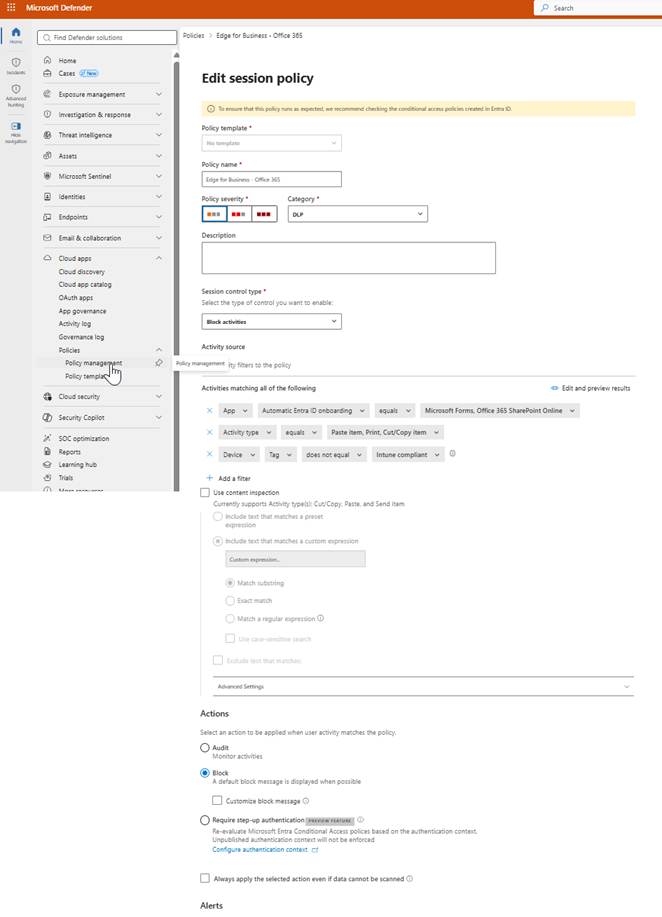
Figure 5. Defender for Cloud Apps session policy blocking copy, paste and print in SharePoint Online.
Stay within the session controls that in-browser protection supports. A Protect file upon download policy, or any other unsupported control, pushes the whole user session back to the reverse proxy.
Option B: Purview DLP for managed cloud apps
This is where content awareness comes in. A typical rule: block downloads of documents that contain credit card numbers, or carry a Highly Confidential label, when the device is unmanaged.
1. In the Microsoft Purview portal go to Data loss prevention > Policies > Create policy.
2. Select Enterprise apps and Devices, then Custom > Custom policy.
3. Name the policy and keep Full directory for admin units.
4. Under locations, select Managed cloud apps, scope it to your imported group, then Include managed apps and pick SharePoint Online or your third-party app.
5. Create a rule with Content contains your sensitive information types or sensitivity labels. Add the unmanaged-device condition if the policy is BYOD-only.
6. Under Restrict browser and network activities, set file download, cut/copy, paste and print to Audit or Block.
7. Keep admin alerts on, and start in simulation or audit mode before turning the policy on.
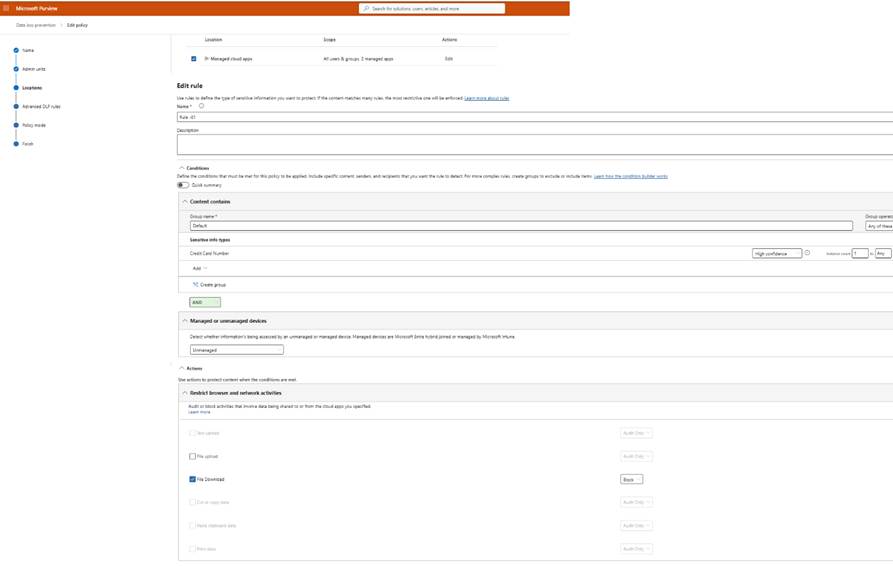
Figure 6. Purview DLP rule for managed cloud apps.
For in-scope users, opening files in native clients is blocked in both audit and block modes, so “Open in desktop app” from SharePoint won’t work. Put that in your user communications before you switch anything on.
What happens behind the scenes?
When you create a Purview DLP policy for Managed Cloud Apps, the corresponding session control is surfaced in Microsoft Defender for Cloud Apps. As shown below, the automatically generated policy reflects the configuration defined in Purview, including the targeted applications, device conditions, content inspection criteria, and enforcement action.
In this example, the policy uses file download inspection, targets OneDrive Web and SharePoint Online, applies the configured device condition, uses the Data Classification Service to inspect for sensitive information, and blocks matching downloads. The automatically generated policy settings are shown as read-only in Defender for Cloud Apps, indicating that the configuration is managed through the associated Purview DLP policy.
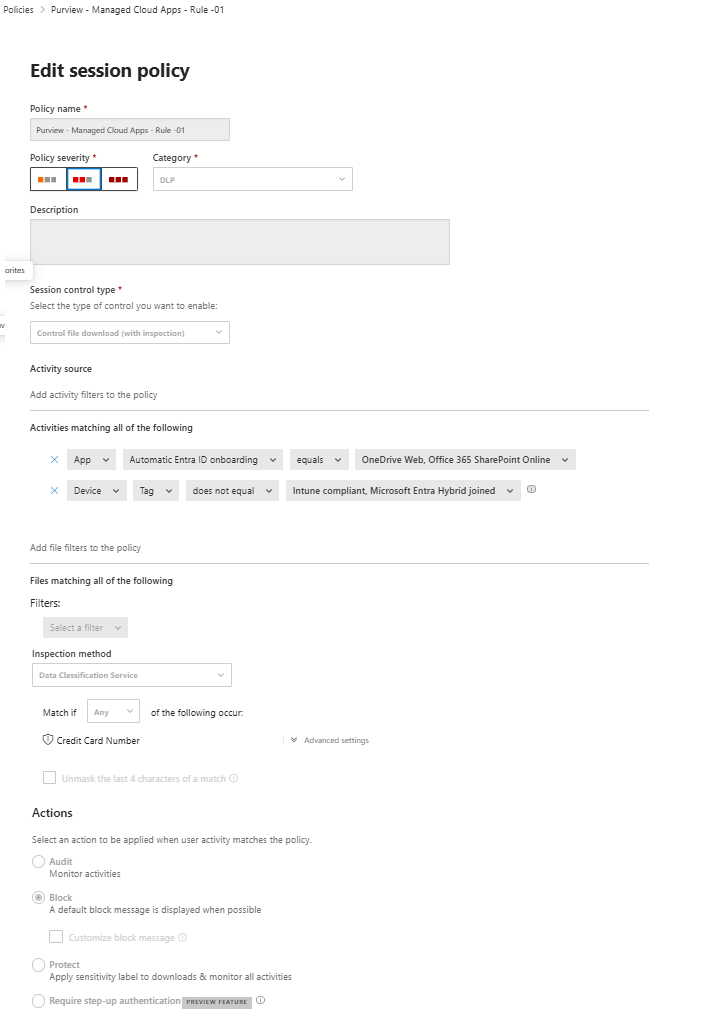
Figure 7. Session policy created automatically.
Optional: protected clipboard and screen capture
As a preview capability, you can turn on protected clipboard and screen capture prevention for managed apps in the Microsoft 365 admin center under Settings > Microsoft Edge. They close two common side doors: pasting into an unmanaged app and taking a screenshot.
Scenario 2: unmanaged AI apps on managed Windows devices
Consumer AI services aren’t in your Entra tenant, so Conditional Access can’t see them. Protection here comes from Purview DLP policies for unmanaged cloud apps in Edge for Business. This pattern only applies to Intune-managed Windows 10 and 11 desktops, but it covers the Edge work, personal and InPrivate profiles.
Supported apps include ChatGPT (consumer), Google Gemini, DeepSeek, Grok, Meta AI, Perplexity and consumer Microsoft Copilot, among others. Enterprise versions of ChatGPT and Microsoft 365 Copilot are handled through separate guidance.
What happens when you save the first policy
What I like most about this pattern is that you don’t build the enforcement by hand. When you save the first Purview collection or DLP policy targeting unmanaged apps, the Edge management service creates and maintains:
- Two security groups, Purview DLP browser protection – included users and excluded users, that mirror your policy scope.
- Edge configuration policies, visible in the Microsoft 365 admin center under Settings > Microsoft Edge, that activate the protection in the browser.
- Intune policies, visible under Devices > Configuration, that block data sharing to browsers where the protection doesn’t apply.
These artefacts are read-only and follow your Purview policy automatically. If the automation fails, usually because the admin is missing Directory Reader, Edge Administrator or Intune Administrator permissions, Purview shows an error and nothing is enforced in Edge. Fix the permissions, then go to Microsoft 365 admin center > Settings > Edge > Resources > Microsoft Purview DLP protections > Sync now. The error can take up to a day to clear after a successful resync.
Browser behaviour when blocking is enabled
- Chrome: may remain available depending on policy scope. Where Chrome remains available, access to the defined set of unmanaged generative AI apps is blocked.
- Firefox and other unprotected browsers: blocked at the device level for users in scope of the Purview DLP policy when the policy action is configured to Block.
- Edge for Business: remains available, with Purview inspecting supported interactions such as sensitive text and file uploads inline.
- Inline evaluation covers up to 4 MB of text and files up to 3 MB.
- Tenants using Intune multi admin approval can’t use this capability yet.
- Because some URLs are shared, a ChatGPT policy can also catch ChatGPT Enterprise. Test before blocking if you license the enterprise version.
Before blocking anything, start with a collection policy targeting unmanaged AI apps. It shows you what sensitive data people are actually trying to share, through Activity explorer and DSPM for AI, and that evidence makes the case for blocking far easier to land with the business.
“We can’t remove Chrome” and you don’t have to
The pushback I hear most from clients is: “Our staff live in Chrome. We can’t take it away.” This design doesn’t ask you to. You aren’t standardising the whole organisation on Edge. You’re making Edge for Business the required door only for the applications that handle sensitive information.
- Conditional Access decides the scope. Only apps targeted by the Conditional Access policy are routed to Conditional Access App Control, and Edge enforcement applies to apps scoped to session policies. Everything else keeps working in Chrome exactly as it does today.
- Start with the crown jewels. Target the apps that genuinely hold sensitive data, such as your HR system, finance platform, CRM or a dedicated SaaS app, rather than every app in the tenant.
- Be deliberate with Microsoft 365. Targeting Office 365 or SharePoint Online covers the whole service, so users would need Edge for all of SharePoint, OneDrive and Outlook on the web. If that’s too broad on day one, start with third party sensitive apps and treat Microsoft 365 as a second phase. For site level scoping, Conditional Access authentication contexts applied through sensitivity labels on SharePoint sites are worth evaluating; validate that they route to App Control as expected in your tenant before relying on them.
- Use device scope where it fits. If Defender for Cloud Apps session controls are the only engine in play, Enforce for which devices? can be limited to unmanaged devices. Purview managed-app DLP needs All devices.
- AI app policies are narrower than they look. On managed devices, Chrome stays usable and only the listed AI apps are blocked. Firefox and other browsers are different: in-scope users are blocked from them entirely. If parts of the business rely on Firefox, factor that into the rollout plan.
On Endpoint DLP-onboarded Windows devices, the Microsoft Purview extension for Chrome adds Endpoint DLP coverage inside Chrome as well. It complements this design, but it doesn’t provide the inline, typed-text protection that Edge for Business does. But you must aware the Chrome extension behaviour.
The message to stakeholders is simple: keep Chrome for everyday browsing; sensitive apps open in Edge. That’s a far easier change to land than a browser replacement project.
Prerequisites and licensing checkpoints
| Area | Requirement |
| Browser versions | The two latest stable Edge for Business versions, starting with version 144. |
| Managed-app operating systems | Windows 10/11 and macOS desktop devices. |
| Unmanaged-app operating systems | Windows 10/11 desktop devices managed by Intune. |
| Identity | Microsoft Entra ID; users sign in to the Edge work profile with their work account. |
| Managed-app licensing | Microsoft 365 E5 or equivalent. |
| Unmanaged-app licensing | Pay-as-you-go or applicable per-user licensing; check current billing guidance. |
| Roles | Conditional Access Administrator, Defender for Cloud Apps admin and Purview DLP admin. Automatic activation for unmanaged apps also needs Directory Reader, Edge Administrator and Intune Administrator. |
| Tenant availability | Defender for Cloud Apps in-browser protection is available to commercial tenants. |
| Feature status | Defender for Cloud Apps in-browser protection is currently in Preview. |
| Guests | Purview browser and network data security policies don’t apply to B2B guest users. |
Gotchas and known limitations
These are the items I’d write into the architecture decision record rather than leave as footnotes.
| Scenario | What happens |
| User in scope of both a Defender session policy and a Purview managed-app DLP policy | Purview browser protection might not apply. Keep one engine per user and app. |
| Endpoint DLP configured for the same user, context and action | Endpoint DLP takes priority over the browser policy. |
| Unsupported session policy, such as Protect file upon download | The whole session falls back to the reverse proxy. |
| Edge on Android, Edge InPrivate, older Edge versions, Okta authenticated apps, Entra portal defined session policies | Served by the reverse proxy, not in-browser protection. |
| B2B guest users | Not covered by Purview browser data security policies. |
| User already signed in when added to a policy | Enforcement starts after their token expires and they sign in again. Shorten sign-in frequency in Conditional Access during rollout. |
| Managed-app Purview policy in audit or block mode | Opening in native clients is blocked and developer tools are disabled. |
| Switching a user from another browser into Edge | The deep link can be lost and the app opens on its home page. |
| Large or encrypted files | Session policies handle files up to 50 MB; content inspection applies below 30 MB and one million characters. Review the Conditional Access App Control known limitations before production. |
| Purview policy sync status shows N/A for the browser DLP policy | Expected. Activation errors surface in the Purview portal instead. |
| Desktop apps, CLI tools, native Slack or Zoom clients | Out of scope for any browser control. Use Endpoint DLP or network-layer controls (GSA). |
| Unmanaged AI apps on BYOD | Not covered. Unmanaged-app policies need Intune-managed Windows devices. |
How I’d roll this out
1. Define the scope. Agree the protected data, users, devices and applications, starting with the crown jewels.
2. Validate the prerequisites. Confirm licensing, permissions, supported platforms and preview status.
3. Pilot. Build the managed-app path for a pilot group and test from both a corporate laptop and a personal device, in Edge, Chrome and Firefox.
4. Observe before you block. Run Purview policies in simulation or audit and review Activity explorer and Defender XDR.
5. Warn, then enforce. Move to policy tips with override, then to block once false positives are tuned out.
6. Expand. Widen scope only after application compatibility, exceptions, support procedures and user communications are agreed.
What this means for CIOs and data protection leaders
The value isn’t “another browser policy.” It’s a way to put content aware controls right at the point where users interact with sanctioned business apps and AI services, without a browser replacement project. The leadership decision is where this control sits in the broader data security architecture.
- Use managed app browser DLP when the business needs controlled BYOD access to Entra connected applications without enrolling personal devices.
- Use unmanaged app browser DLP when you need to govern sensitive prompts and uploads to AI services from Intune-managed Windows endpoints.
- Keep Endpoint DLP and network controls for scenarios outside the browser, and design policy scope carefully to avoid overlaps.
- Treat preview status, B2B exclusions, browser version dependencies, licensing and Conditional Access App Control limits as formal design constraints.
Conclusion
If GSA isn’t on your roadmap yet, you don’t have to accept the “they’ll just use Chrome” gap. By combining Conditional Access App Control, Edge for Business enforcement and Purview DLP for managed and unmanaged cloud apps, you make Edge for Business the only way into your sensitive apps, on corporate devices and BYOD, without taking Chrome away from anyone.
The strongest version of this design is the one that states its boundaries plainly: where the control works, where it doesn’t, what it depends on, and how it coexists with Endpoint DLP and network-layer enforcement. Get those right and you have a pragmatic control you can deploy now, and a solid foundation to layer GSA on later.
If you’ve implemented this differently or hit a limitation I haven’t covered, I’d love to hear about it in the comments.
References
2. Understand Data Loss Prevention (DLP) in Microsoft Edge for Business
3. Learn about Data Loss Prevention for Cloud Apps in Edge for Business
4. Help prevent users from sharing sensitive information with cloud apps in Edge for Business
5. Help prevent sharing via Edge for Business to unmanaged AI apps from managed devices
6. In-browser protection with Microsoft Edge for Business
7. Automatic activation of your Microsoft Purview policy in Microsoft Edge
8. Import user groups from connected apps
9. Conditional Access App Control known limitations
10. What happens when users are blocked from using unprotected browsers

